Version 1.4.27 · 22 November 2026
What’s new in Gymza 1.4.27
Gymza 1.4.27 rebuilds coach pay: each coach looks after their own members and is paid a percentage of the subscriptions assigned to them, with a limit per coach, renewals that keep their coach, and months closed then marked paid. After updating, assign members to each coach; percentages already set are kept. Also: every list sorts with a click on a column, and a class on several days of the week is created at once. Just below, 1.4.26 (money by sport, profit). Your data, passwords, badges, fingerprints and licence are kept.
What does not change
An update never touches the gym’s data: members, payments, photos, settings, licence and passwords stay where they are. Gymza takes a full backup before installing, and if the installation does not complete, the previous version keeps running and says so.
What changes in Gymza 1.4.27
22 November 2026
Coach pay
Each coach looks after their own members
Staff → Coach pay → Open, Assign tab: search for a member (name, phone or member number), pick a sport to see its paid, current subscriptions that have no coach yet, or tick several at once. Only paid, current subscriptions can be assigned: an unpaid, ended, frozen or suspended one is refused with the reason. A subscription already looked after by another coach is shown as such and can be moved.
Learn morePay is always a percentage, day by day
A coach’s pay is a percentage of the value of the subscriptions assigned to them: each paid subscription’s price, spread over its days, for the days the coach had it. A one-month subscription the coach had all month counts in full; for half the month, by half. Unpaid, cancelled, suspended or frozen days do not count, and a subscription is never counted twice.
Learn moreA percentage per coach, right in the table
At the top of Coach pay, the percentage for all coaches. In the table, a click on a coach’s percentage gives them their own, or brings them back to the default. In the coach’s profile you can also set a percentage per sport, or a higher percentage from a number of subscriptions. A change applies from the month you choose.
A limit per coach, renewals and history
Each coach can have a subscription limit: Gymza shows the places left and refuses to go past it. A renewed subscription keeps its coach and counts only once paid. Removing a member from a coach, or moving them to another, takes a last day: the coach is counted up to that day. The history shows who assigned what, when, and why it ended.
Learn moreClose the month, then mark it paid
Closing the month records each line with its percentage: its figures no longer change, whatever you edit afterwards. Mark as paid records that the gym paid the coach; Gymza makes no transfer and no payslip. A closed month not yet paid can be reopened.
Important: assign members after updating
After updating, assign members to each coach (Staff → Coach pay → Open → Assign). Percentages already set are kept.
Subscriptions
The Coach column follows the assigned members
On the Memberships page, the Coach column and the coach filter show the coach each subscription is assigned to. The “to pay coaches” figure uses the same calculation as Staff → Coach pay.
Learn moreLists
Every column sorts with a click
In every list in Gymza, a click on a column header sorts the list; a second click reverses the order.
Classes
A class on several days of the week, created at once
A class held on several days of the week (yoga on Monday, Wednesday and Friday at 18:00) is created in one go. It can be edited or deleted for all its days at once, or for one day only.
Already in Gymza 1.4.26
21 November 2026
Subscriptions
A large card per sport on the Memberships page
At the top of the page, one card for each sport (plus “All sports”), with its icon and colour, its active memberships and the money received this month for that sport. Clicking a card shows only that sport’s memberships. A membership covering several sports counts in full on each of its cards, so the cards do not add up.
Learn moreThe month’s figures, just below the cards
Paid this month (refunds deducted, with how many members paid), to pay coaches (a click opens Staff → Coach pay), left for the gym and the unpaid balance. Coach figures show only to users who manage staff. Active, expiring soon and frozen are the filters just below.
Learn moreThe page opens on the active memberships
The Memberships page opens on the active memberships, and so does each sport card.
Dashboard
The profit for the period at the top of the dashboard
A wide card opens the dashboard: the profit for the period chosen (today, this week, this month, this year or a custom range), that is the money received minus expenses. When expenses are higher, the card turns red with “Loss”.
Learn moreCards in plain words
Members with a subscription, visits, new registrations, ending in 7 days, money received, expenses and still owed by members: each card has a short explanation. Comparisons that would mislead, such as absurd percentages after importing members, are no longer shown.
Screens open on Today
The dashboard, payments, expenses, sales history, stock and vending screens open on Today. Reports stay on the month.
Inside
Inside for an hour, or until they go out
A member counts as inside for 60 minutes after entering, or until they badge or scan a finger on the way out. The duration is set in Access control and in Settings, from 10 minutes to 12 hours. With no exit reader, the inside count is an estimate based on that duration.
Learn moreA larger inside count with no door controller
When no door controller is set up, the top bar no longer shows the door status and shows a larger count of who is in the gym now.
Coach pay
How much to pay each coach, month by month
New Staff → Coach pay tab: choose the month and one percentage per coach, applied to the money received this month, the month’s sales or an amount you enter (the profit, for example). The rate is remembered for the following months. The details show the calculation sport by sport: a coach is linked to the sports they train, not to members. Gymza works out the amount to pay; it makes no payment and no payslip.
Learn moreAccess control
ZKTeco inBio260 panel with a TS1000 Plus turnstile
Gymza supports the ZKTeco inBio260 panel with a TS1000 Plus turnstile: one entry reader and one exit reader, and fingerprint enrolment at the front desk with the ZK9500 USB reader.
See the device pageLists
More rows visible in the lists
Lists (members, memberships, payments, attendance, stock, expenses, audit log) take almost the full height of the window: more rows at once.
A members list that reads better on a small screen
Search and the sport filter fit on one line, the status filters sit below, and sport names stay readable on a small screen.
Already in Gymza 1.4.24
21 November 2026
Subscriptions
One tab per sport on the Memberships page
A tab for each sport the gym offers (from Sports & classes), plus “All sports”: each tab shows only the memberships that cover that sport, with its number of active memberships.
Learn moreFive cards at the top of each tab
Active, expiring soon, unpaid balance (the amount still owed and how many memberships owe something), frozen, and new this month (count and amount sold). Click a card to show the matching list.
New filters: by coach and by end date
Pick a coach in “All coaches” to see the memberships of the sports that coach trains (trainers are set for each sport in Sports & classes). The “Ends between” filter lists the memberships ending in a given period. The usual filters stay.
Learn moreNew columns: coach, and paid / total
The list shows the sport’s coach and, next to the balance due, “Paid / total”.
Customer display
Customer display: your own welcome screen
On the Customer display page (the second screen facing members), the new Layout tab builds your own welcome screen from these blocks: logo, gym name, slogan, clock, date, welcome, “Scan your badge”, announcements, text, picture, shape and sports.
Learn more25 ready-made templates in your colours to start from
Each template uses the gym’s colours, logo, name, slogan and sports. Then you can change everything: drag blocks to move them, pull the corners to resize, add blocks.
Learn moreBackground in a colour, a gradient or your own picture
The background can be a colour, a gradient or your own picture (best at 1920×1080). Undo and redo at any time while editing.
The standard screen is still available
Choose “My layout” or “Standard screen”. When a member scans, the screen still shows the usual result screens (welcome with the photo, or a request to see reception): your layout is the welcome screen between scans. The welcome and scan texts follow the screen’s languages, as before.
Already in Gymza 1.4.23
18 November 2026
Front desk
A badge or a fingerprint no longer takes you away from what you are doing
While adding or editing a member, a subscription or a setting, while searching or in an open window, you stay where you are when a member presents a badge, a member card (QR code) or a fingerprint. The entry is recorded exactly as before: only what the screen shows changes.
Learn more“Open profile” in the entry notification
The entry notification (allowed or refused, with the member’s name) still appears and offers “Open profile”, to open the profile when you are ready.
Learn moreThe profile still opens by itself from the front desk screens
From the dashboard, the members list, a profile, attendance or access, when nothing is under way, the profile opens by itself as before. The “Open the profile on a scan” setting (Settings › RFID badges) still switches this off.
Notifications
Every notification closes with its cross
Entry allowed or refused, saved, errors, warnings: every notification closes with its cross, even while a window is open, without closing that window. A form you are filling stays on screen. The entry card (photo and name on each scan) closes the same way.
The update download message can be closed too
The message at the bottom of the screen while an update downloads now has its own cross.
Already in Gymza 1.4.22
17 November 2026
Your brand
Your own colours
In Settings › Branding, switch on “Use my own colours” and pick a main colour and, if you want, a second one (for example yellow and orange, or yellow alone). Ready-made looks are offered, and the application shows the colours while you choose them. Buttons, active items and highlights take the main colour; the active menu marker and accents take the second. Receipts and member cards follow the main colour. Black, white and the status colours (green for allowed, red for refused, amber for warnings) never change, so text and important information stay readable, and on a light colour such as yellow, text turns dark by itself. Switched off: Gymza orange.
Learn moreYour logo, and your logo and name in the application
Add, replace or remove the gym’s logo (PNG, JPG or WebP, up to 1.5 MB): it is printed on receipts, member cards and reports, and shown on the customer display. With “Use my logo and name in the application”, your logo and gym name replace the Gymza mark in the menu, on the sign-in screen and on the customer display. The “Gymza by ATLAXYS” credit stays in the menu, with the version line.
Learn moreSubscriptions
“Correct” a subscription sold with a mistake
On the subscription, “Correct” changes the plan (for example cardio instead of bodybuilding), the dates, the price or the registration fee. The subscription takes the new plan’s activities, visits and access hours. Its payments are in the same window, where you can change a payment’s date, void it or take a new one. The new total cannot go below what was already paid, and every correction is kept in the subscription’s history and the audit log.
Learn moreFreeze with no end date
Tick “No end date” when you do not know when the member will be back. The freeze’s end date can be set, changed or removed later, on the subscription. When the freeze ends, the days it lasted are added to the subscription’s end date, within the plan’s freeze allowance.
Learn moreRegistration fee at the sale: now, later or no fee
At the sale, choose “Pay now”, “Pay later” (the fee is owed and added to what is left to pay, not collected today) or “No fee”.
“Left to pay” in view without opening anything
“Left to pay”, with the amount owed, shows on every subscription and member, in the lists, on the cards and on the subscription itself, so the front desk sees what is owed without opening anything.
Front desk
Larger “inside” counter and a card on each entry
The “inside” counter at the top of the screen is larger and green. On each badge or fingerprint scan, a card shows for a few seconds with the photo, name, member number and plan: green for an allowed entry, red with the reason for a refused one. A click opens the member’s profile.
Learn moreText and display size, each user’s own
In the Appearance menu at the top of the screen, “Text and display size” offers five sizes, from 85% to 125%. Text, buttons, tables and windows grow or shrink together. Each user’s choice is remembered on that computer.
Fix: a new user’s welcome guide
The welcome guide closes, skips and moves to the next step normally; it no longer appears under the first sign-in questions.
Already in Gymza 1.4.21 (since 1.4.14)
15 November 2026
Fingerprints and badges
Fingerprint and badge registered before the first subscription
Reception can register a member’s fingerprint or badge as soon as the member is created, before any subscription is sold (or after the last one lapsed). It is not an entry right: the door stays shut until the member has a valid subscription, and opens for them as soon as one is sold. Only a suspended, blacklisted or archived member cannot have one registered.
Learn more“Check finger”: does the reader read this finger well?
On the member’s profile, with the USB fingerprint reader at reception: the reader reads the finger 3 times and says whether it reads well. Good, Fair (readable, but reads had to be repeated) or Not readable. The window gives the tips that make a finger readable (clean, not too dry or wet, flat and centred, lifted between reads, clean sensor, another finger), and you can leave a note (“finger very dry: rub it first”, “use the left index”…) shown on the profile and in the fingerprint window for the next enrolment. A check registers nothing and sends nothing to the door: Gymza keeps only the result and the note, never the fingerprint.
Learn moreThe 3 reads of the finger, live
When enrolling or checking a finger, a ring around the fingerprint fills as each read succeeds, as on a phone, with the steps 1, 2 and 3 underneath. A read that has to be repeated shows in red.
Turnstile and access
Turnstile opening twice: a 1-second unlock duration
Set Settings › Access control › Unlock duration to 1 second: it is already so on a new installation, and gyms already running Gymza set it themselves. A turnstile lets one person through per opening; a magnetic door lock may need 3 to 5 seconds. A finger read twice in a row counts once, and a visit pack loses one visit, not two.
Learn moreExit reader on a ZKTeco C3 controller
In Hardware, set “Exit reader door” to 2 on the controller. A person at the exit reader is recorded as leaving, and the turnstile releases in the exit direction.
Learn moreThe device log shows where an opening comes from
It shows each opening Gymza sends and the controller’s own events (exit button, remote opening, door opened or closed), so an installer can see where an unexpected opening comes from.
Removing a device no longer reconnects it
Removing a device in Hardware no longer reconnects it for a moment first.
Receipts
Receipt layout, with a preview
In Settings › Printing, “Receipt layout” shows a preview of your latest receipt that follows each change: logo printed or not and its size (small, medium, large), typeface (standard, condensed, fixed width), text size, darker text for thermal paper, header centred or to the side, side margin, a line of your own under the header (opening hours, a promotion…) and which lines print: slogan, address, phone and e-mail, tax ID, time, member code, who took the payment, thank-you line. Screen, printer and PDF follow the same layout.
Learn moreReceipt text: your own wording
Replace any wording printed on the receipt with your own (title, “Amount paid”, “Balance due”, thank-you line…). An empty field keeps the standard text. The “VOID” stamp stays as it is.
Choose the date format
Automatic (gym language), DD/MM/YYYY, MM/DD/YYYY, YYYY-MM-DD, DD-MM-YYYY or DD.MM.YYYY, with or without the time. The date now prints correctly on Arabic receipts.
The receipt shows only your gym
“Issued with Gymza by ATLAXYS Consulting” is removed from the receipt.
Cash drawer on the receipt printer
A cash drawer connected to the receipt printer opens by itself on a receipt’s first print: never, after a cash receipt, or after every receipt, as you choose. A reprint does not open it. A button in the settings opens it to test. Works with every printing method.
Learn more
Already in Gymza 1.4.14
11 November 2026
Direct thermal printing (ESC/POS)
A new “Printing method” in Settings › Printing. Gymza talks to the receipt printer in its own language, like cash-register software, on 80 or 58 mm rolls, and cuts the paper after each receipt (printers without a cutter ignore it).
Learn moreTwo ways to reach the printer
Through the printer installed in Windows, or straight over the network with its IP address, with no Windows driver. “Windows driver (standard)” stays the method for A4/A5 printers and thermal printers with a full driver.
For printers that fed blank paper
Choose it if your receipt printer works with other software but fed blank paper from Gymza. The receipt looks the same: logo, Arabic and amounts included.
The test page uses the chosen method
“Print a test page” uses the chosen printing method, so you can check straight away.
Already in Gymza 1.4.13
11 November 2026
Editable subscription dates
The “Change dates” button lets you set a subscription’s start and end dates freely, with a reason. The status follows the new dates (upcoming, active or expired) and door access follows the status; family members on the same subscription get the same dates. Every change stays in the history and in the audit log. A cancelled subscription cannot be changed.
Learn morePayment date
“Change date” corrects the day of a payment entered after the fact. Only the day changes: the amount, payment method and receipt number stay the same, and the old date stays in the audit log. Reserved to users allowed to cancel payments.
Learn moreReceipt printer: refresh and test
In Settings › Printing, “Refresh the list” shows a printer plugged in later, and “Print a test page” checks the printer and paper width straight away. Gymza lists the printers installed in Windows: install your printer’s Windows driver first.
No more blank tickets
The receipt waits until it is fully ready before printing. If your thermal printer still feeds blank paper, turn on “Use the printer’s own paper size” in Settings › Printing.
Already in Gymza 1.4.12
11 November 2026
ZKTeco hardware: the hardware Gymza officially supports
Gymza now centres on ZKTeco equipment, the hardware it officially supports: C3 access controllers (C3-100, C3-200, C3-400), the ZK8500R fingerprint reader and turnstiles. The C3 driver and fingerprint enrolment remain experimental.
Learn moreA clearer Hardware page
Each device shows a readable name (for example “ZKTeco C3 access controller”) and ZKTeco equipment is offered first.
Face registration is no longer offered
Face registration is no longer offered; badges and fingerprints work as before.
Learn morePricing: only the supported hardware
Plans list only the hardware that is supported. ZKTeco controllers, turnstiles and fingerprints are configured with Gymza Custom.
Learn more
Already in Gymza 1.4.11
11 November 2026
Staff access: badge or fingerprint, with no membership
From the Staff page, each team member (trainers, reception, cleaning, security…) gets a badge or a fingerprint, using the same readers, controllers and enrolment steps as for a member. Staff enter with no membership, no expiry date, no visit limit and no time restriction. The “Door access” switch suspends or restores a person’s access at any time (leave, end of contract…) without removing their badge or fingerprints; it applies at once, including on controllers that decide on their own while the PC is off. Fingerprints stay experimental, as for members. Gymza stores no fingerprint.
Learn moreStaff attendance: arrivals, departures and staff inside now
Every staff entry and exit at a door is recorded automatically: who, when, which door and how (badge, fingerprint or by hand). Passages made while the PC was off are added once Gymza reads the controller’s memory. The Attendance tab shows each person’s day (arrival, departure, time recorded and every passage) by day, week or month, for all staff or one person. “Staff inside now” lists who came in and has not left, based on the last passage; for a door with no exit reader, “Record exit” closes a presence by hand and opens no door. Staff passages are marked “Staff” and never count in member attendance. Gymza records passages at the doors: it is not payroll software or an official record of working time.
Learn more24-hour or 12-hour time
New “Time format” setting in Language & region: times read “18:30” or “6:30 pm” on screen, on the customer display, on receipts and in reports. 24-hour stays the default.
The receipt opens after each transaction, ready to print
After a subscription, a sale, a payment, a refund or a wallet operation, the receipt opens ready to print, in the gym’s language. To turn it off: “Show the receipt after each transaction”, in the settings.
Member import: registration date, photo and Arabic names
The import (Members → Import) now also brings across each member’s registration date and photo (image files placed next to the spreadsheet), and handles Arabic names better. The preview flags, row by row, a missing phone or photo when the gym’s settings require them. Subscriptions, payments and attendance are still not imported: they carry a history and receipt numbers that cannot be invented.
Members list: counts that always match
Each filter on the Members list shows exactly the number of members it lists, within the current search and sport.
Already in Gymza 1.4.10
10 November 2026
Fingerprints at the turnstile: Gymza also decides when no time zone is set (experimental)
Fingerprints at the turnstile: Gymza also decides when the ZKTeco controller refuses a recognised member for lack of a time zone, and opens if the membership allows it.
Learn moreEvery finger presented is noted in the device log
Every finger presented to the controller is noted in the device log, with the controller’s code.
Already in Gymza 1.4.9
10 November 2026
Fingerprints: the person created on the controller gets a number (experimental)
Fingerprints: Gymza now numbers the person it creates on the ZKTeco controller, as ZKAccess does. Without this number, the controller refused all of that person’s fingerprints.
Learn morePeople without a number are fixed automatically
A person created without a number by an earlier version is fixed automatically at the next enrolment.
Already in Gymza 1.4.8
10 November 2026
Fingerprints: the person is read before writing (experimental)
Fingerprints: Gymza now reads the person on the ZKTeco controller correctly before writing the fingerprint, and uses a simpler format if the controller refuses the first one.
Learn moreEach format tried is listed
If the controller still refuses, the message lists each format tried.
Already in Gymza 1.4.7
10 November 2026
Fingerprints: enrolment in two short connections (experimental)
Fingerprints: enrolment on the ZKTeco controller now uses two short connections, for controllers that refused the fingerprint at the end of a long one.
Learn moreMore detail for our support
If the controller still refuses, the message gives more technical detail for our support.
Already in Gymza 1.4.6
10 November 2026
Fingerprints: the same format as ZKAccess (experimental)
Fingerprints: the fingerprint is now sent to the ZKTeco controller in the same format as ZKAccess, for controllers that still refused it.
Learn moreThe controller’s answer shows correctly in Arabic
The error message now shows the controller’s answer correctly in Arabic.
Already in Gymza 1.4.5
10 November 2026
Fingerprints: sending to the ZKTeco controller fixed (experimental)
Fingerprints: fixed sending the fingerprint to the ZKTeco controller, which could be refused (“The controller refused the fingerprint”).
Learn moreA person created in ZKAccess keeps their card and door rights
A person created in ZKAccess and linked to a member keeps their card, dates and door rights when Gymza adds a fingerprint.
The controller’s exact answer in the message
If the controller still refuses, the message shows its exact answer, to help our support.
Already in Gymza 1.4.4
9 November 2026
USB fingerprint reader: nothing more to install on a PC that has ZKAccess (experimental)
Gymza now uses the ZKTeco component already installed with ZKAccess: on a PC with ZKAccess, there is nothing more to install. On a PC with neither, ZKTeco’s software is still needed; the simplest is ZKAccess. Gymza does not install it: it uses what is already on the PC. Everything else is unchanged: the reader appears by itself in Hardware, the guided test records nothing and opens no door, and enrolment is switched on controller by controller. Experimental feature.
See the device pageReader troubleshooting: which ZKTeco component is used
The reader’s Troubleshooting section shows which ZKTeco component is used and how the fingerprint was read. This helps our support when something does not work.
See the device page
Already in Gymza 1.4.3
8 November 2026
More reliable updates: an interrupted download now resumes where it stopped
If the connection drops during an update download, Gymza resumes where it stopped and retries by itself. The installer is still verified before anything is installed. This applies to updates made from 1.4.3 onwards: reaching 1.4.3 itself still uses the previous downloader. If that fails, the installer from the website works, and your data stays in place.
Read the guideNew “Assign access” button on the member profile: badge or fingerprint
One button for a badge or a fingerprint, and a choice that cannot be used right now shows the reason. Fingerprints depend on compatible equipment.
Learn moreThe main door’s status always visible, and “Open turnstile” tells you when the door could not open
With access control, the main door’s status stays at the top of the screen: Open, Closed, Not working or No controller. Open and Closed follow the commands Gymza sends to the relay: no sensor confirms the arm moved. “Open turnstile” now tells you when the door could not open, the opening stays logged with the name and reason, and a controller serving several doors opens the one mapped to the chosen entrance.
Learn moreCountry, currency and language asked first at setup
Country, currency and language are the first step of setup, and all three are mandatory. Morocco-specific information, such as ICE, only appears for gyms in Morocco; elsewhere Gymza refers to a company or tax ID. An existing installation is asked once for its country.
The reception RFID reader no longer shows “Connected” before it has read a badge
The reception USB RFID reader behaves like a keyboard, so the PC cannot tell whether it is plugged in. Gymza shows “Waiting for a badge” until a badge is read.
See the device pageA notification when the trial is renewed or full access is granted
A notification tells you when your trial is renewed or full access is granted.
Copy buttons, audit log and fixes
Copy buttons work again, the audit log is easier to read, and many display and translation issues are fixed.
Already in Gymza 1.4.2
8 November 2026
USB fingerprint reader detected automatically, with a guided test (experimental)
The USB fingerprint reader (ZK8500R and readers on the same SDK) is detected automatically in Hardware, with its model, status and a guided test (“Configure and test”) that records nothing, involves no member and opens no door. When something is wrong, the screen says what: driver missing, reader in use by another program, reader not recognised… Enrolment still needs the reader’s driver and ZKAccess on the PC, and is switched on per controller. Experimental: it has not yet been verified on the physical reader and controller.
See the device pageAt the turnstile, Gymza applies your access rules (experimental)
At the turnstile, the controller recognises the finger and Gymza applies your access rules before opening, exactly as for a badge: membership, opening hours, daily limits, visit packs. With this default setting, the reception PC must therefore be on for fingerprints to open the door. Adjustable per controller: the controller can decide alone, even with the PC off, but only validity dates then apply.
Learn more“Identify this controller”
In Hardware, “Identify this controller” asks the controller (C3, inBio…) what it is and what it can do: report entries, open the turnstile, match fingerprints. Nothing is changed on the controller, and the result is not a promise of compatibility.
Learn moreMore reliable enrolment
The “Enrol fingerprint” button appears only when the reader is ready, the screen stays open while the fingerprint is written to the controller, and replacing a fingerprint keeps the old one if the new one cannot be written.
Time zone and currency chosen at setup
Time zone and currency are chosen at setup, prefilled from the PC, with every time zone available in Settings. A wrong controller clock no longer stops members from entering; the one exception is a controller set to decide alone, which judges validity dates by its own clock.
Already in Gymza 1.4.0
6 November 2026
ZKTeco fingerprints from a ZK8500R USB reader (experimental)
Enrol from a ZK8500R USB reader (and readers on the same SDK) at reception, sent straight to the turnstile controller and checked: the fingerprint only counts once it is read back from the controller, which then recognises the member at the turnstile. Switch it on per controller in Hardware (“Fingerprint enrolment (USB reader)”); needs the reader’s driver and ZKAccess on the PC. It takes a ZKTeco controller that stores and matches fingerprints itself: a classic C3 with KR901 readers reads badges only, and the profile says so. Validity follows the membership: an ended, frozen or cancelled membership is refused at the turnstile, then accepted again after a renewal. The same fingerprint cannot be registered for two members, and the badge keeps working as before. Experimental: not yet verified on the physical reader and controller.
See the device pageMember profile: a new “Fingerprints” tab
The new “Fingerprints” tab brings everything together: where fingerprints are registered, which door they open, device status, the last attempt and why it failed.
Safer enrolment
Each attempt stays tied to the member who started it, even if another profile is opened meanwhile. New “Cancel enrolment” button: nothing is written to the device once cancelled. As before, reception confirms the member’s identity and consent before starting.
Privacy: Gymza keeps no fingerprint
Gymza no longer reads or keeps any fingerprint from a controller; the encrypted copies kept by 1.3.10 are erased by the update. Only “which finger, on which device” is kept: the fingerprint stays on the controller (or terminal). Nothing biometric is sent to the internet, and every enrolment, removal or failure is recorded in the audit trail, without any fingerprint data. In Morocco, the gym must obtain the CNDP authorisation (law 09-08) before using fingerprints; Gymza does not do this for the gym.
Learn moreControllers that decide alone: the profile warns
When a controller matches fingerprints itself (enrolled in ZKAccess), the profile says so and warns when it may open for a member without a valid membership: Gymza records the entry, but cannot refuse it. Members enrolled in ZKAccess keep getting in as before.
Already in Gymza 1.3.10
5 November 2026
ZKTeco: read the controller’s people and fingerprints
Hardware → ⋯ → “People & fingerprints” reads the people and fingerprints enrolled in ZKAccess on your controller, without changing anything on it. Each person is linked to their member by badge, or by hand.
Fingerprint entries count on the member
Fingerprint entries at the door are now recorded on the member, and a member whose subscription has expired is flagged.
Fingerprints known to the controller, on the profile
The member profile shows their fingerprints known to the controller. Version 1.3.10 kept an encrypted copy of the fingerprints it read: 1.4.0 erases it, and Gymza no longer keeps any.
In 1.3.10, new fingerprints went through ZKAccess
With 1.3.10, new fingerprints were enrolled in ZKAccess (with Gymza closed), then “Read from the controller”. Since 1.4.0 they can also be enrolled from Gymza with a ZK8500R USB reader (experimental).
Already in Gymza 1.3.9
5 November 2026
ZKTeco: what the controller supports, noted in the log
When it connects, Gymza notes in the device log what the controller supports (readers, fingerprints). This helps us prepare fingerprint support for your hardware, without changing anything on the controller.
Already in Gymza 1.3.8
5 November 2026
ZKTeco C3: connection fixed with some C3-200 (older firmware)
Some C3-200 with older firmware refused the connection while still working. They showed “The panel refused the command (error -98)”: they now connect normally.
Read the guideA failed connection no longer blocks the controller
A failed connection attempt no longer leaves a connection open on the controller, which could block it.
A more complete device log
Long lines are shown in full, and when the controller refuses, the log shows what it answered, to help support.
Already in Gymza 1.3.7
3 November 2026
ZKTeco C3: connection fixed with some C3-200
Some ZKTeco C3 controllers (some C3-200) work without a session. Up to Gymza 1.3.6, the device card then showed “Connection closed” and the controller never connected, even though it worked with ZKAccess: they now connect normally, and automatic detection benefits from the same fix. As before, close ZKAccess or ZKBioSecurity while Gymza uses the controller, and leave the communication password empty unless one was set in ZKAccess. The C3 driver remains experimental.
Read the guideDevice form: readable field names
In Hardware → Add a device, the “Door number” and “Direction” fields now show their names in French, English and Arabic, instead of a technical code.
The direction is picked from a list
The direction is picked from a list (In / Out) instead of being typed by hand.
Already in Gymza 1.3.6
3 November 2026
ZKTeco C3 without a communication password: connection fixed
Some ZKTeco C3 controllers with no communication password refused Gymza (“The panel refused the command”) even though they worked with ZKAccess: they now connect normally. Most C3 controllers have no communication password: leave the password field empty in Gymza. If one was set, it is the one shown in ZKAccess, in the device’s edit window (“Communication Password”). The C3 driver remains experimental.
Read the guideDetection no longer asks for a password by mistake
Automatic detection recognises these controllers too, and no longer wrongly says they need a password: a controller not saved yet shows as “Detected, not configured”, ready to configure. As before, the search only reads the model, firmware and serial number, without trying any password.
Reminder: one program at a time
A C3 controller accepts only one program at a time. While Gymza uses the controller, close ZKAccess or ZKBioSecurity on every PC, including the icon next to the Windows clock. This is not a change in behaviour: it is already what the Hardware page advises when another program holds the controller.
Already in Gymza 1.3.5
2 November 2026
Automatic hardware detection
A few seconds after Gymza opens (never slowing the start-up), it looks for ZKTeco C3 controllers on the PC’s private local network, then tries again in the background while a saved controller is missing or none was found (after 2, 5, 15 and 30 minutes, then hourly). “Search now” runs it on demand; it can be switched off or limited to chosen networks on the Hardware page. It only reads the model, firmware and serial number: no password is tried, no relay is pulsed, nothing is written to the controller, and no device is ever saved by itself: the administrator clicks “Configure” and saves. It needs the turnstile module (Gymza Custom); the C3 driver remains experimental.
Read the guideA controller that changes address is recognised
A saved controller that took a new address on the network is recognised by its serial number: one click on “Use this address” updates the device (recorded in the audit log). As before, saved devices connect at start-up and reconnect by themselves.
Clearer Hardware page
Two tiles at the top say what works right now: badges at the door (and through which device) and fingerprint enrolment (and if not, why). Each device shows its address, model, firmware and serial number, and a clear state: Connected, Connecting, Disconnected, Connection failed, Disabled. A failed connection lists simple next steps: password, network, or another program such as ZKAccess holding the controller.
ZKTeco C3 and KR901: badges, not fingerprints
With a ZKTeco C3-200 and KR901 readers, the fingerprint button is dimmed and the profile explains why: the KR901 has no fingerprint sensor and the classic C3 stores and matches no fingerprints. No software can enrol a fingerprint with this hardware. Badges keep working exactly as before.
Already in Gymza 1.3.4
31 October 2026
Windows notifications: the Gymza name and logo
Windows notifications now carry the Gymza name and logo, instead of a generic header with no logo.
In the language on screen
Notifications follow the language shown in Gymza (French, English or Arabic): the signed-in user’s, or the gym’s language when nobody is signed in. Switching language changes the next ones too.
Arabic reads right to left
In Arabic, notifications read right to left, even when they start with a device name in Latin letters (for example “Porte 2”).
Clearer wording
“3 days” instead of “3 day(s)”, and a failed backup is explained in plain words (for example: “Not enough disk space.”), with no technical code. As before, the Windows banner is kept for what a gym must not miss (a failed or overdue backup, a device that stops answering, the end of the trial) and never shows a member’s name; everything else stays in the bell. It can be switched off under Settings → Notifications.
Already in Gymza 1.3.3
28 October 2026
Automatic updates
Gymza looks for a new version every time it starts, a few seconds after opening and in the background (the front desk never waits), then once a day while it stays open. Checking is now on by default; the owner can turn it off under Updates. A gym on 1.3.1 or older installs 1.3.3 once by hand (Updates → “Check for updates”, or a USB stick); from then on, Gymza finds every new version by itself.
Read the guide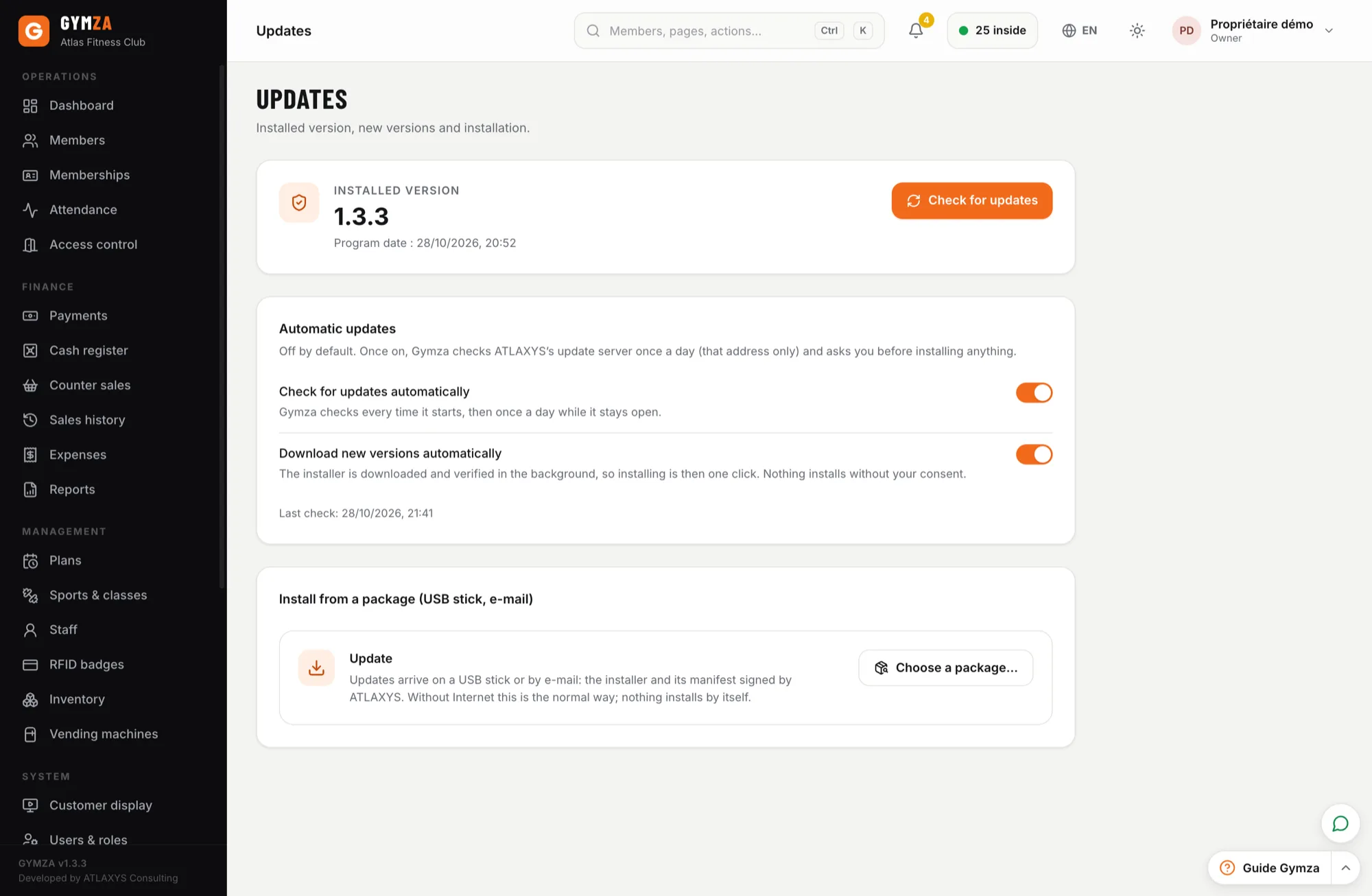
Nothing installs without your consent
The new version is downloaded and verified in the background, then Gymza offers “Install now” or “Remind me tomorrow” to whoever may install. Before installing, it takes a full backup. Every update is signed by ATLAXYS and its file is checked before it can run.
Read the guide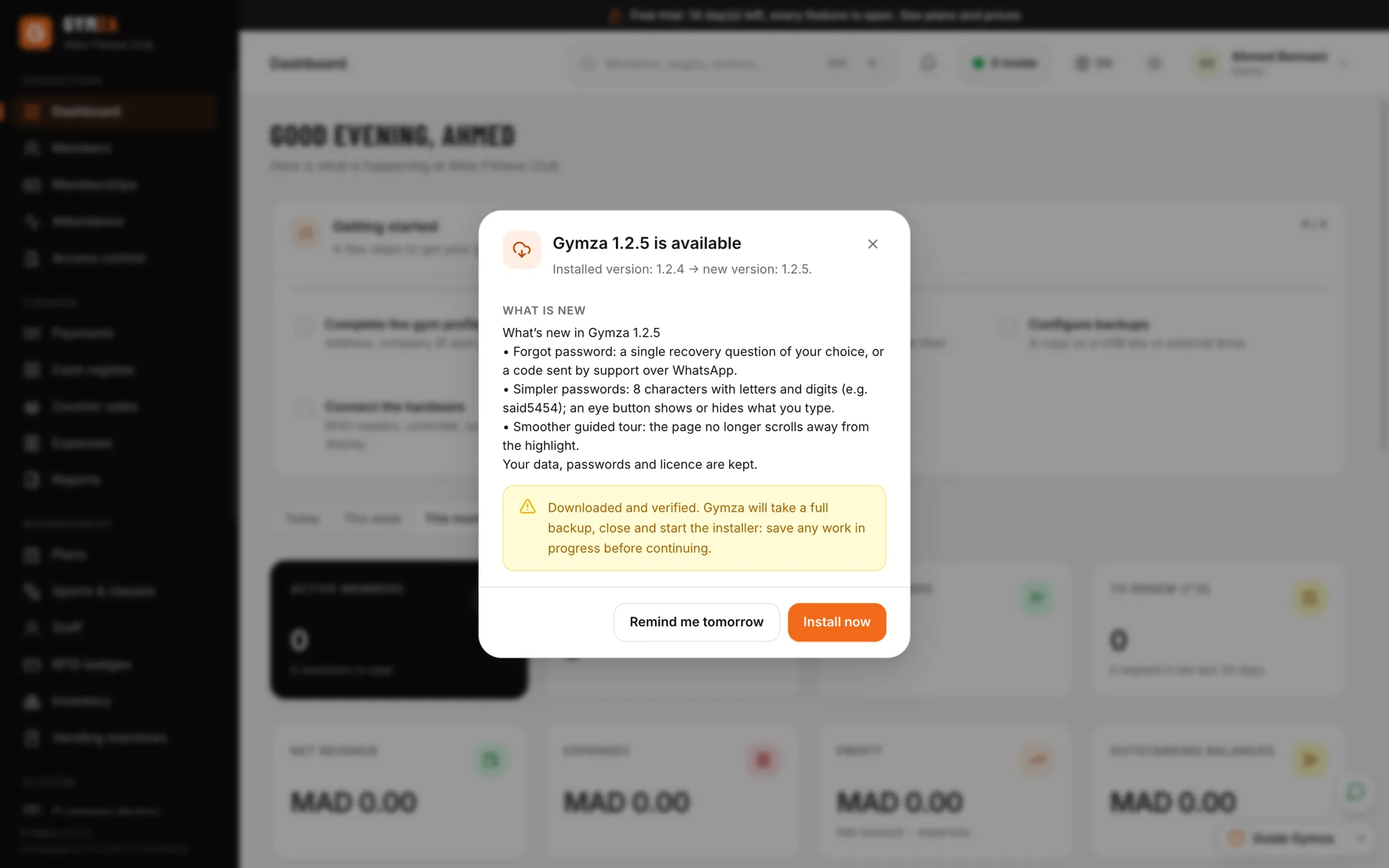
Counter sales
The “Out of stock” badge now stays inside the product card, even on small screens.
Sales history
The list always shows at least 5 sales, then scrolls, so it no longer gets squeezed on small windows.
Read the guide


Already in Gymza 1.3.1
27 October 2026
Sales history
Every counter sale on one page, filtered by period, status (completed / voided), member, product or sale number. Sales total, gross margin and best sellers for the chosen filters; receipt and void right from the list. Find it under Finance → Sales history, or with the button at the top of Counter sales.
Read the guide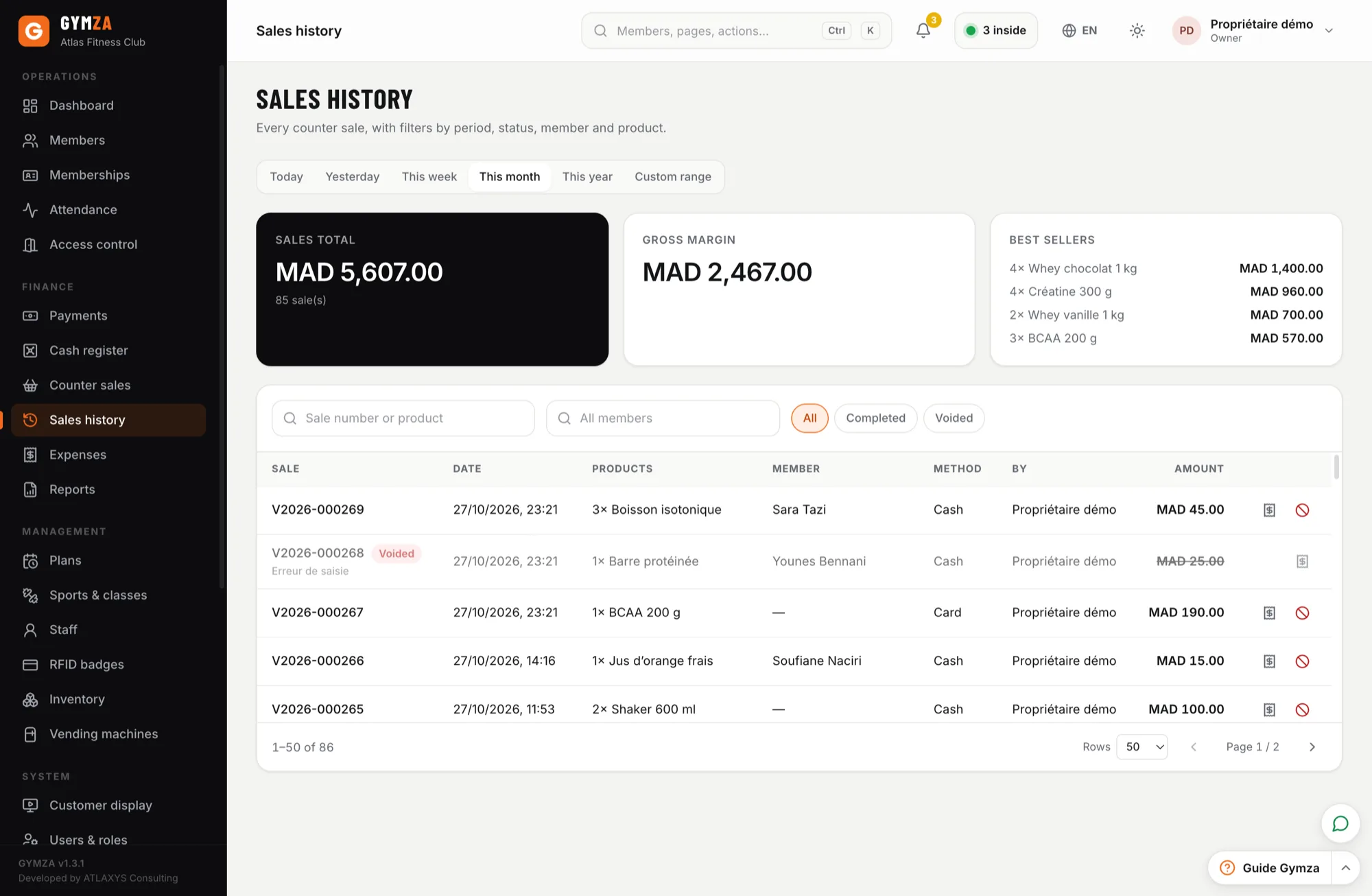
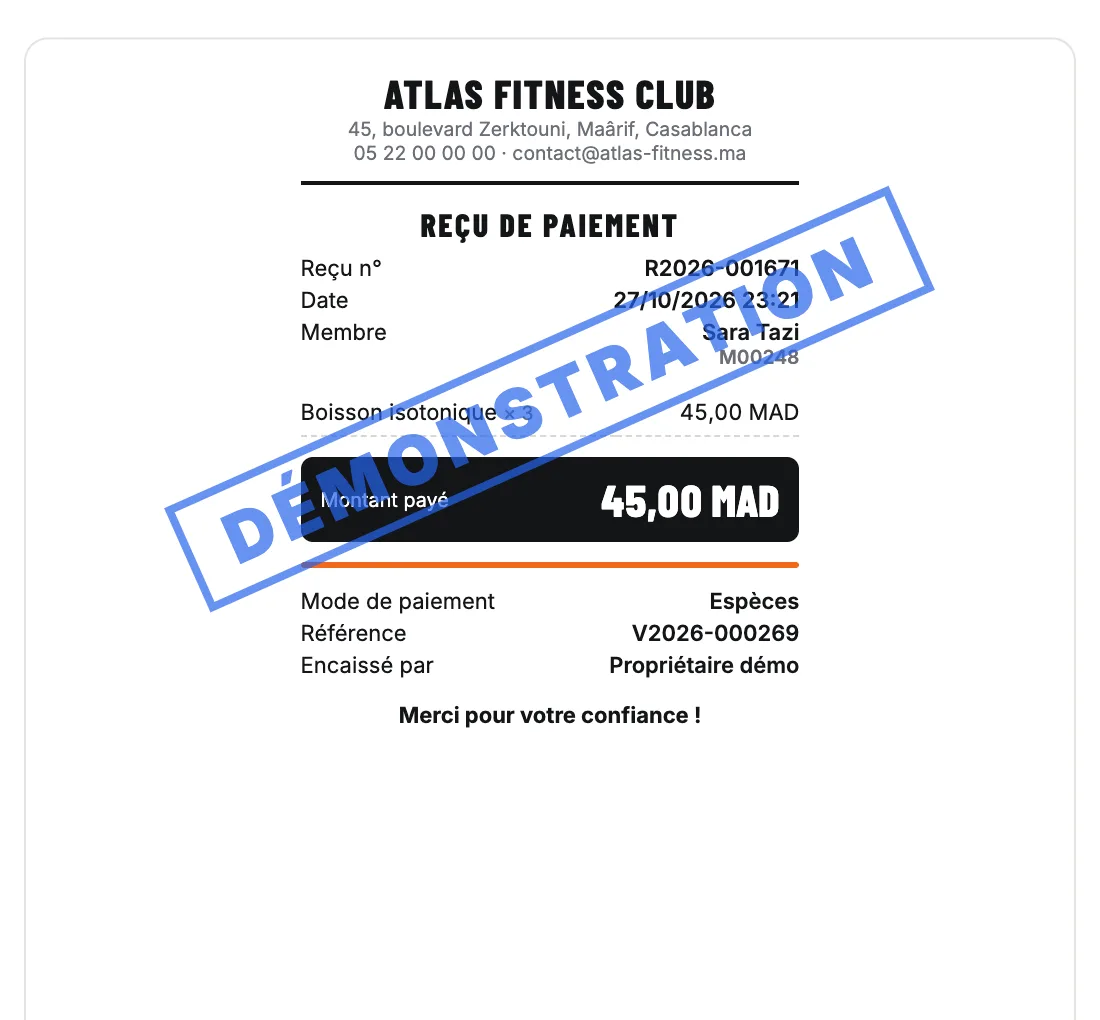
Simpler receipts
Receipts are printed in the gym’s language only (Settings → Language & region), without a QR code. The receipt number stays at the top; same formats: 80 and 58 mm thermal, A5 and A4.


Already in Gymza 1.3.0
25 October 2026
Member wallet
Members put money on their wallet and pay for counter purchases (drinks, supplements…) from their balance. The balance is separate from the membership: it does not expire with it. Every operation stays in the member’s history, with the person who did it.
Discover the wallet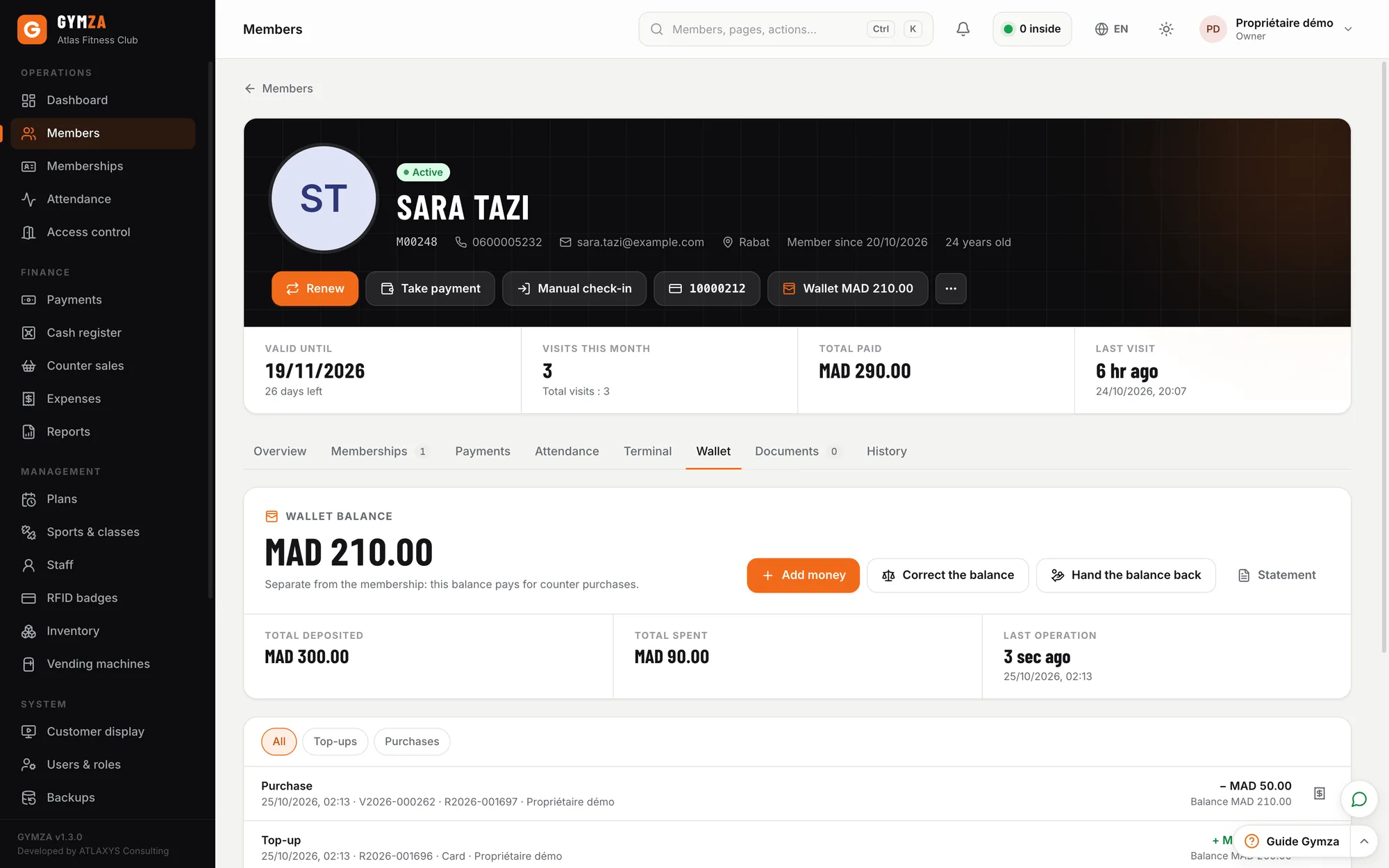
Top up at renewal
When you renew a membership or take a payment, an optional “Wallet top-up” field adds money to the wallet. The membership and the top-up are collected together, recorded apart, on one receipt with the total collected.
Read the guide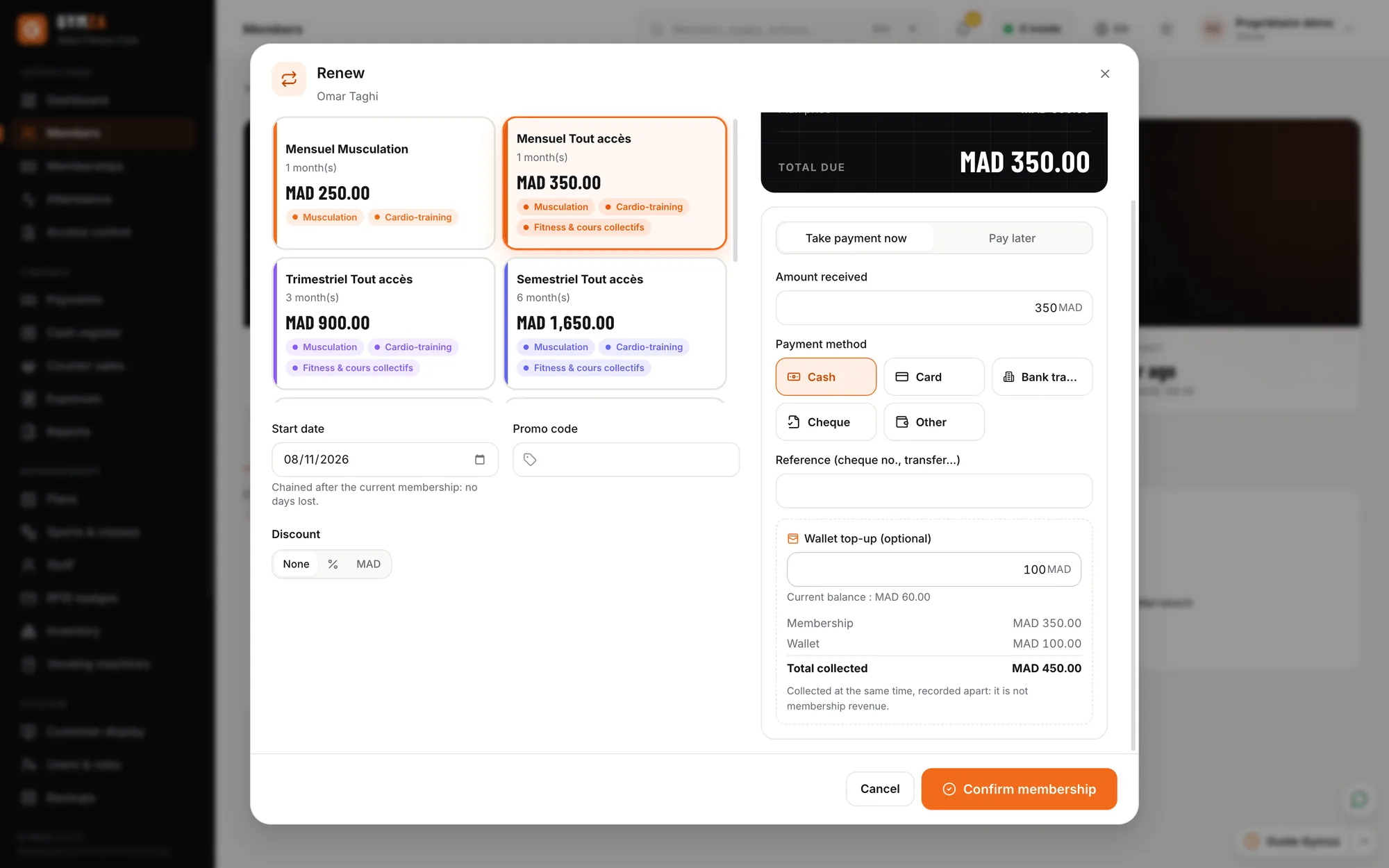
Not enough on the wallet: the counter says so
In Counter sales, when the balance does not cover the basket, the counter shows what is missing and offers “Top up”, pre-filled with that amount. After the top-up, the same basket is still there. A wallet never goes below zero.
Read the guide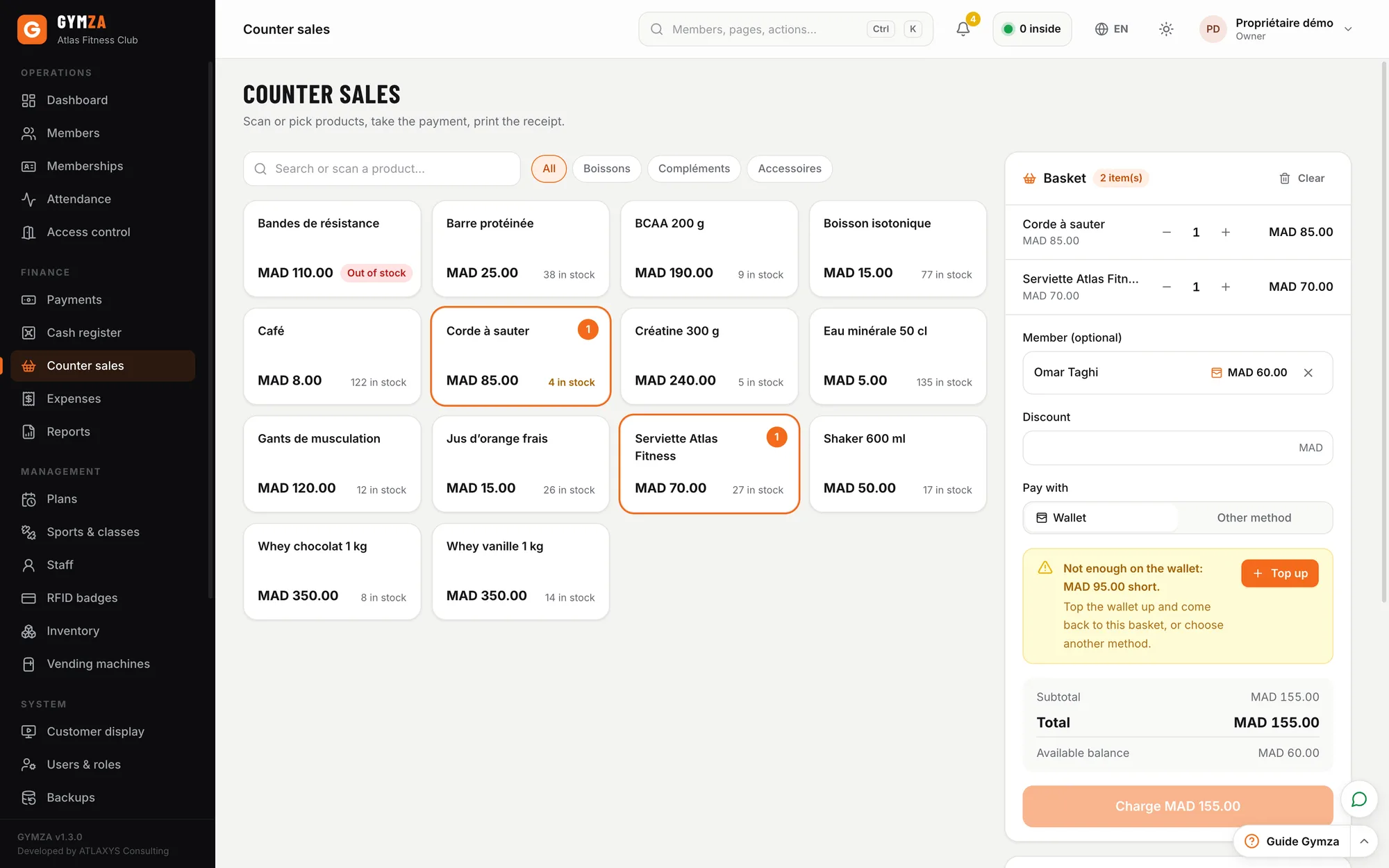
Two reports, and revenue that stays right
A member’s “Wallet statement” (opening balance, operations, closing balance) and the “Member wallets” report. A top-up never counts as revenue: only the purchase counts, once.
Read the guide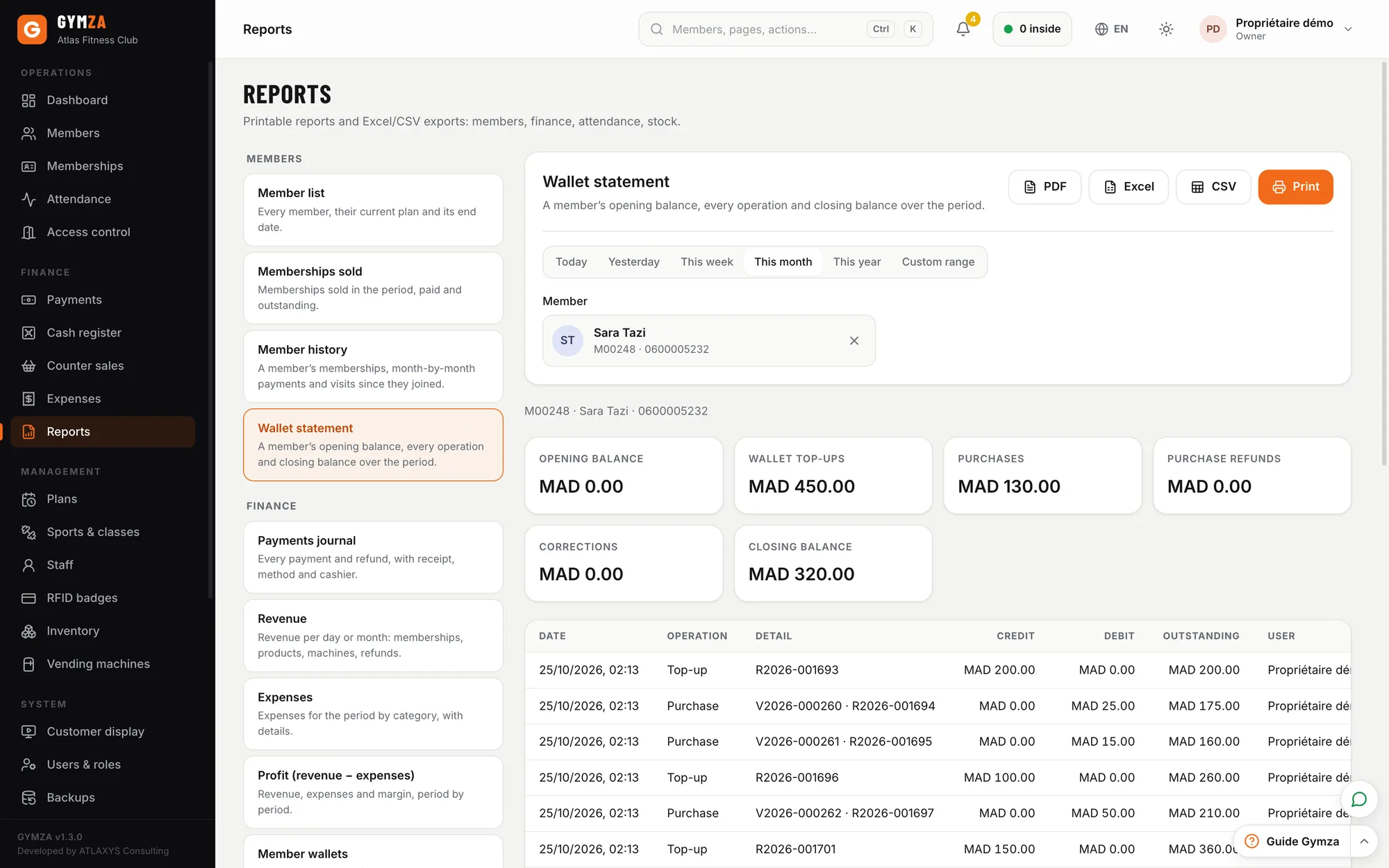
Off by default
The owner switches it on in Settings → Member wallet. Switching it off deletes nothing: balances and history come back when it is switched on again.
Read the guide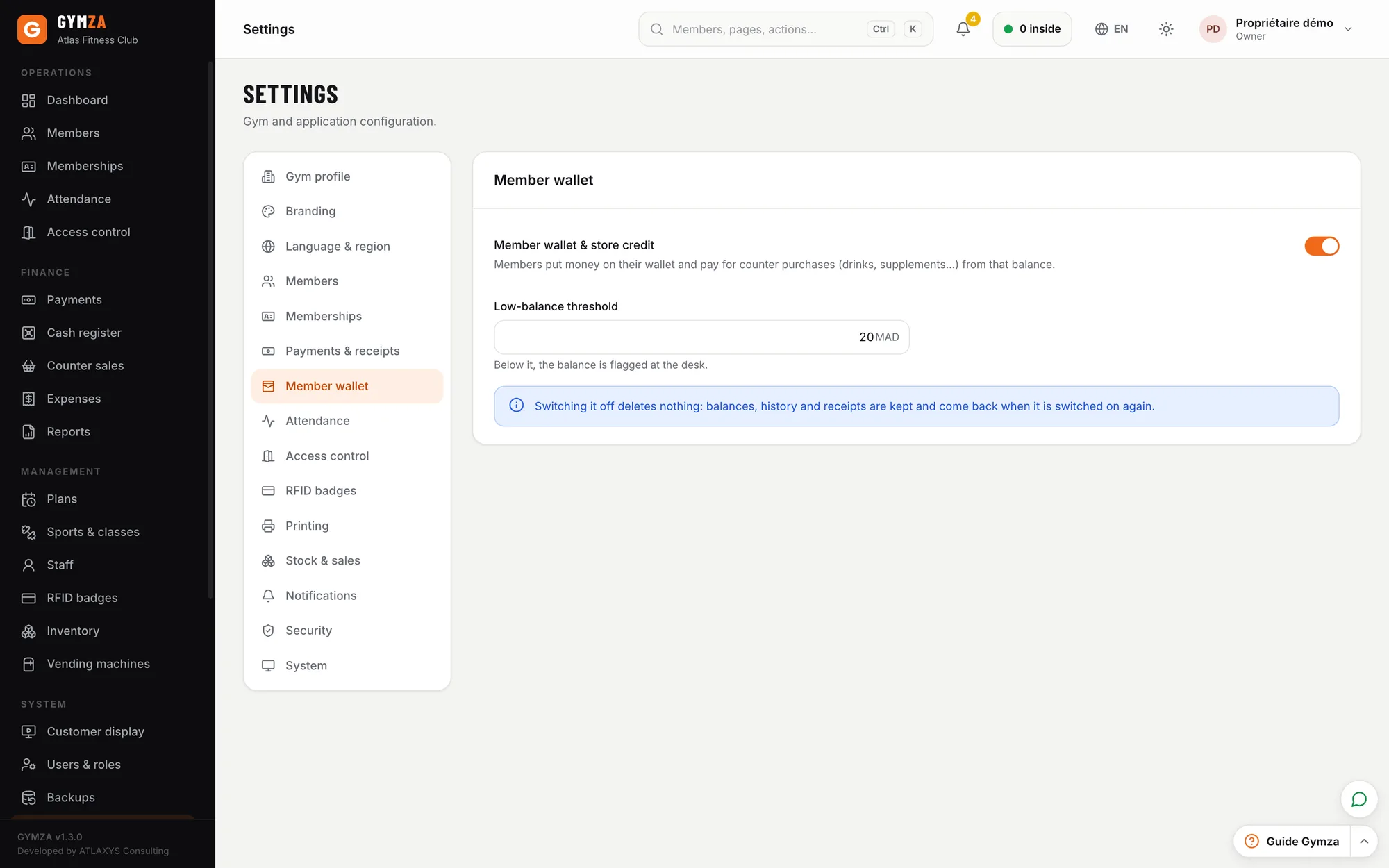


Already in Gymza 1.2.5
24 October 2026
Forgot password: a single question
Every account now chooses a single recovery question: from the list, or written by you. If nobody remembers the answer, ATLAXYS support verifies your identity over WhatsApp and sends you a code. An account that already had three questions keeps working: the first one is asked.
Read the guide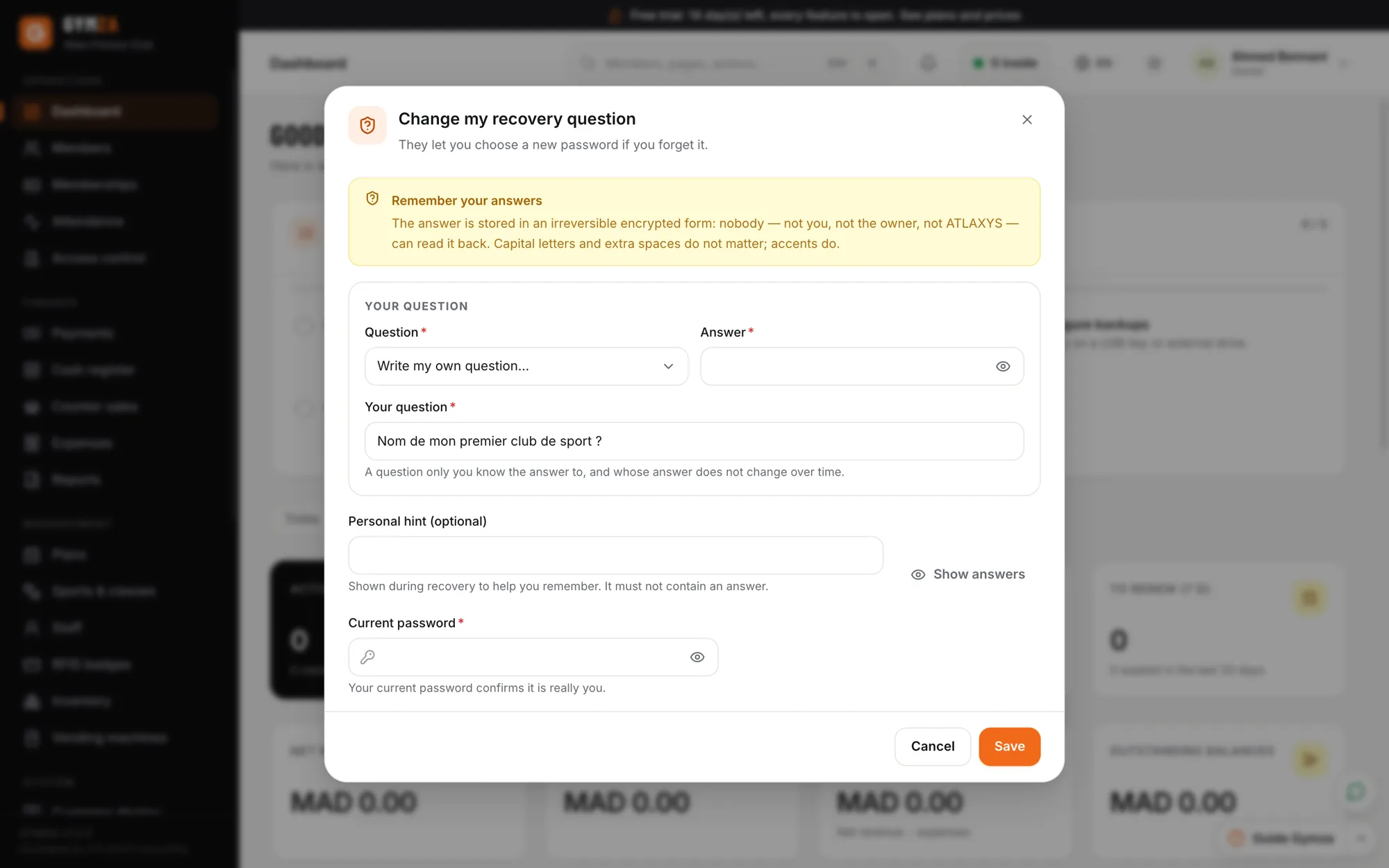
Simpler passwords
A password now needs at least 8 characters, with letters and digits, and no longer requires capital letters. An eye button next to the field shows or hides what you type.
Read the guide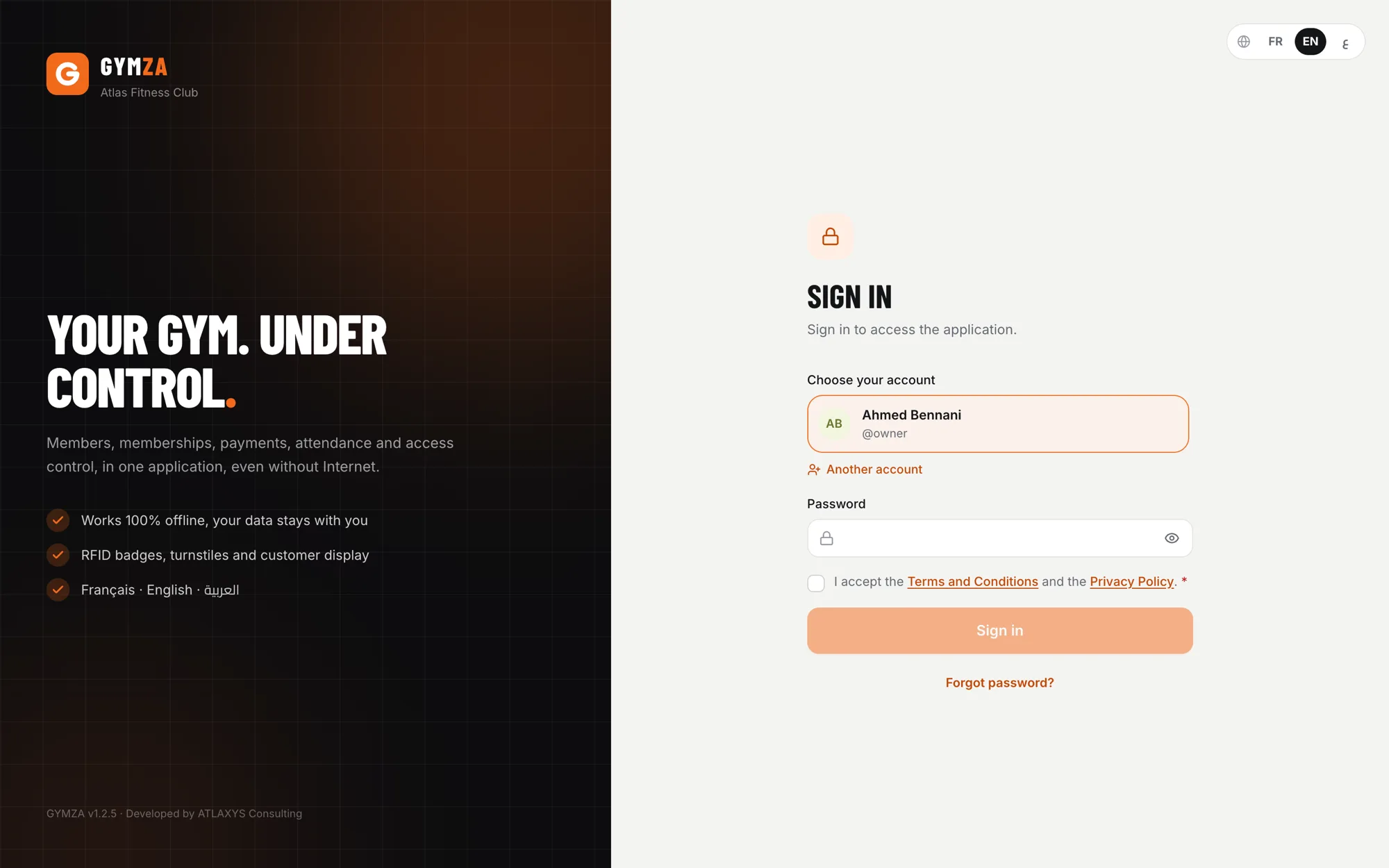
A smoother guided tour
During the guided tour, the page no longer scrolls away from the highlighted item.


Already in Gymza 1.2.4
23 October 2026
Updates without interruption
The download runs in the background: the front desk keeps working, and a small chip shows the progress on every screen. Installation waits until nobody is typing or saving, offers “Install now” or “Later”, takes a full backup, installs by itself and reopens Gymza on the new version, in about a minute.
Read the guide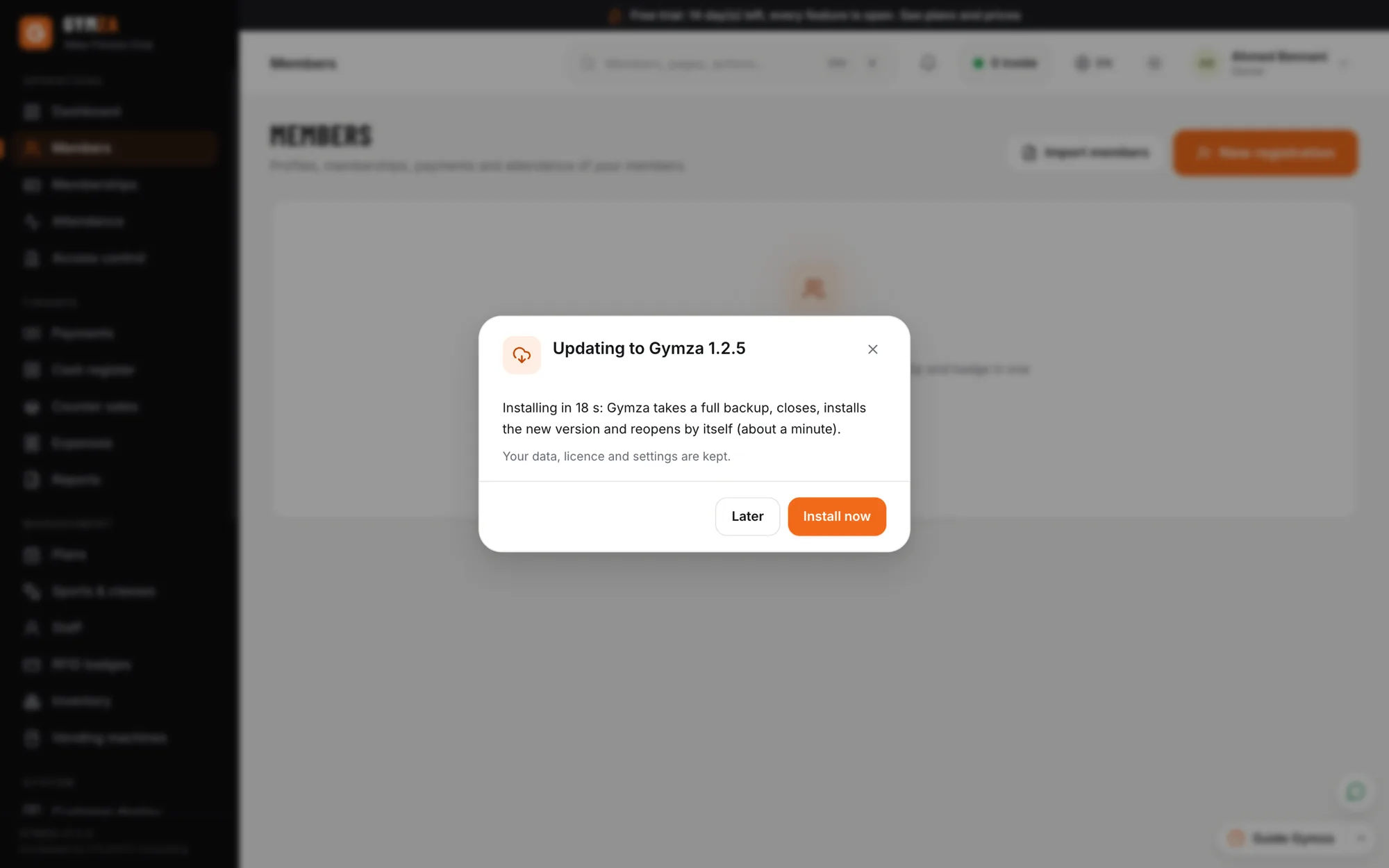
Automatic updates, if you want them
Off by default up to version 1.3.1, on by default since 1.3.3. Once switched on in the Updates page, Gymza checks once a day, downloads a newer version in the background and asks you: “Install now” or “Remind me tomorrow”. Nothing installs without your consent.
Read the guideForgot password
One recovery question per account (three in version 1.2.4, a single one since 1.2.5). On the sign-in screen, “Forgot password?” lets you answer it, then choose a new password. If nobody remembers the answer, ATLAXYS support verifies your identity over WhatsApp and sends you a single-use code.
Read the guide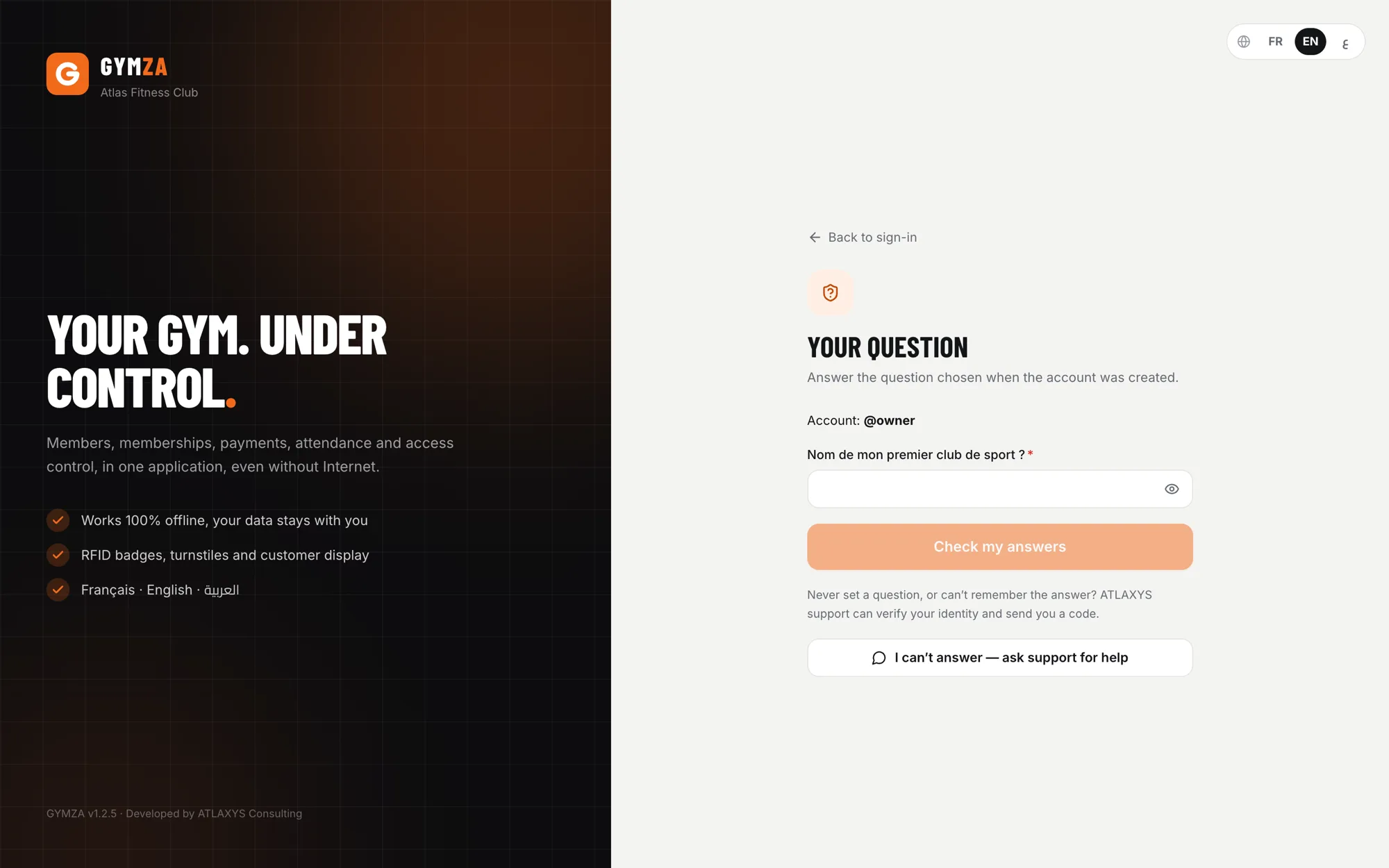
An easier sign-in
Accounts already used on this PC are listed: one click to pick yours. A session stays open for 8 hours, even after closing Gymza or restarting the PC. “Lock” (Ctrl+L) hides the session; “Switch user” ends it.
Read the guide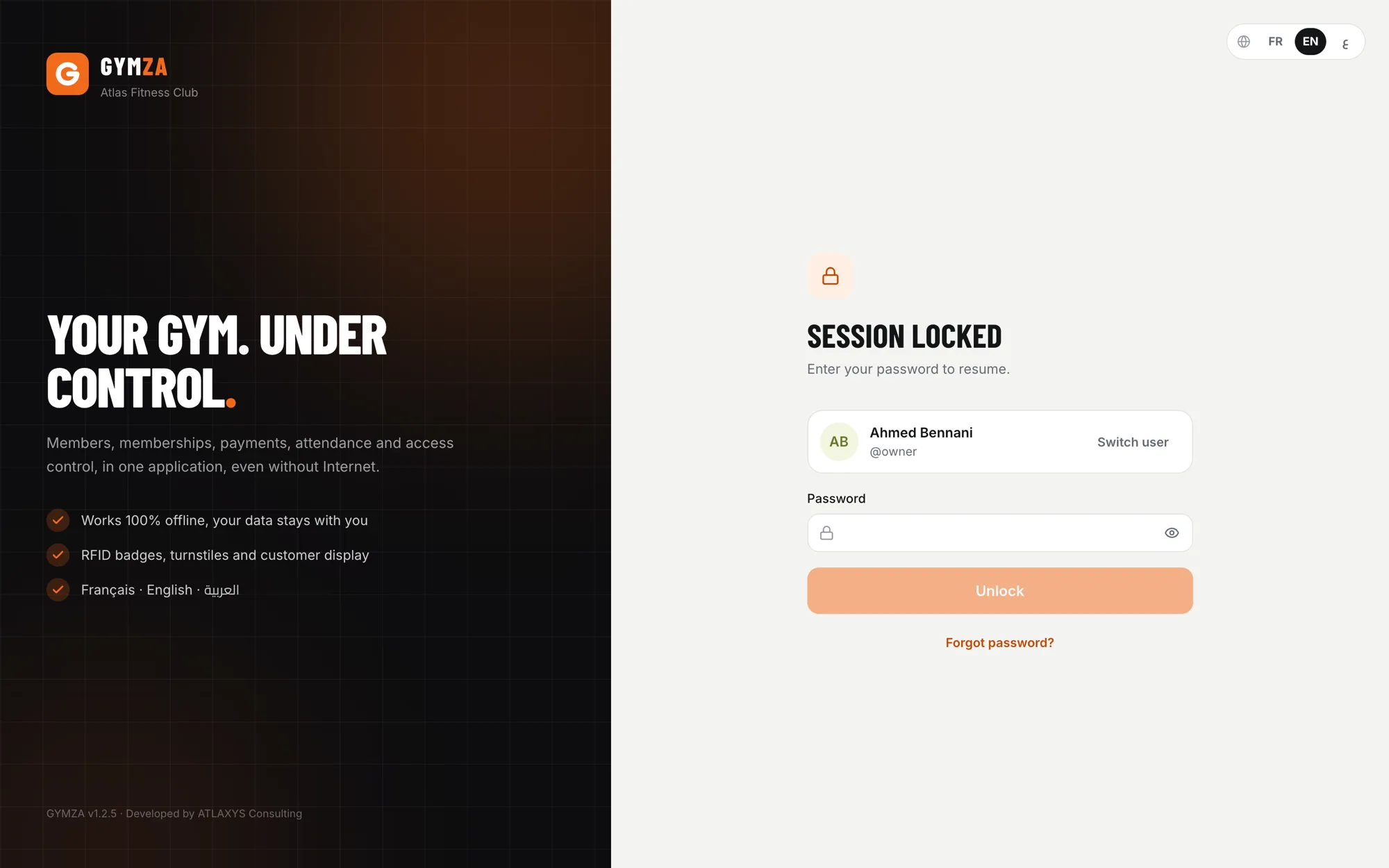
A pattern for finances and settings
Expenses, reports, settings, users, the licence and the audit log ask for an unlock pattern, like on a phone. It lasts 5 hours and adds no rights. Daily front-desk work (members, payments, check-ins) is never behind it.
Read the guide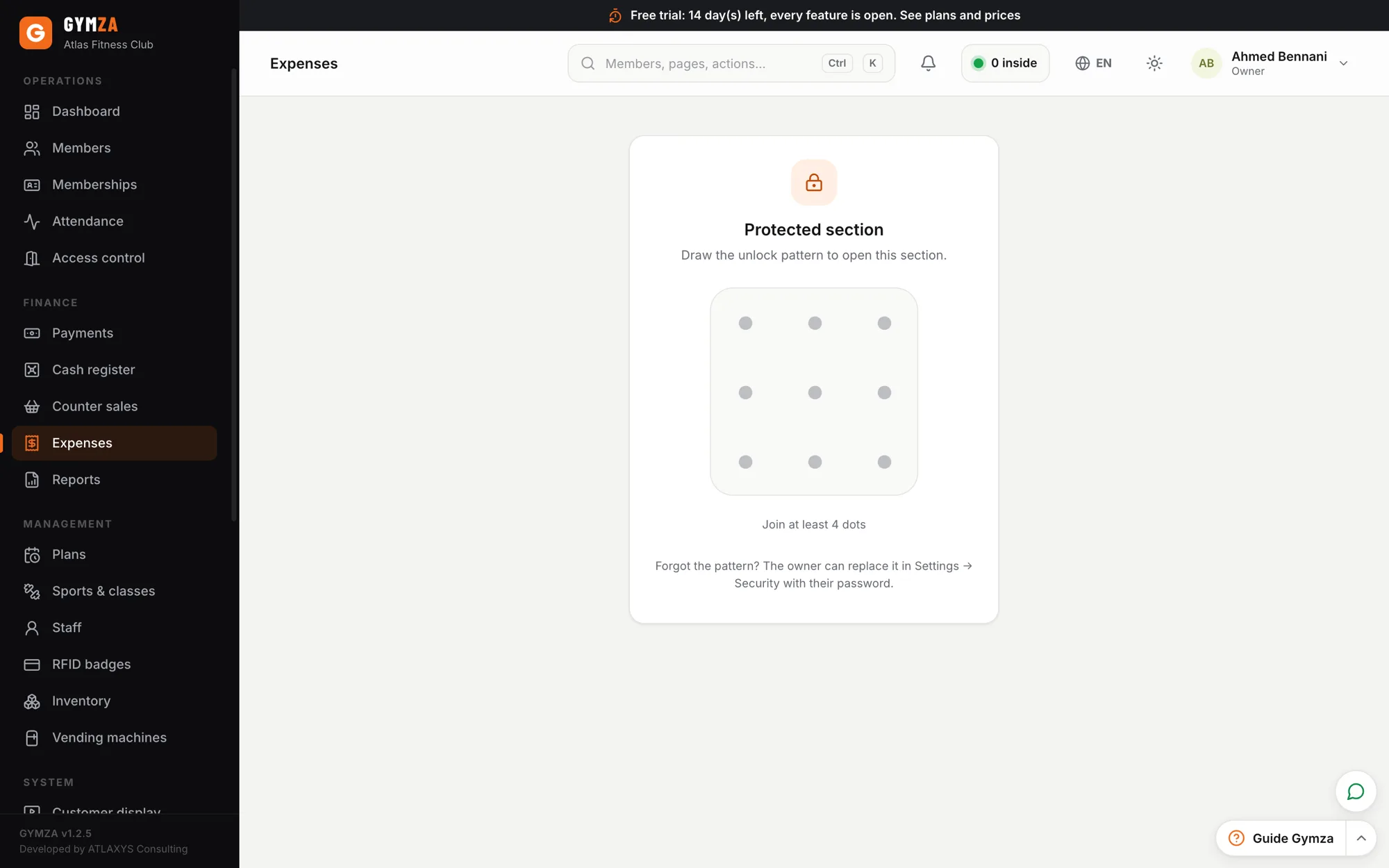
A WhatsApp help button
The “WhatsApp help” button prepares a message for support with your version, your licence and, if you want, a summary of recent errors, without member data. Nothing is sent until you press Send.
Read the guide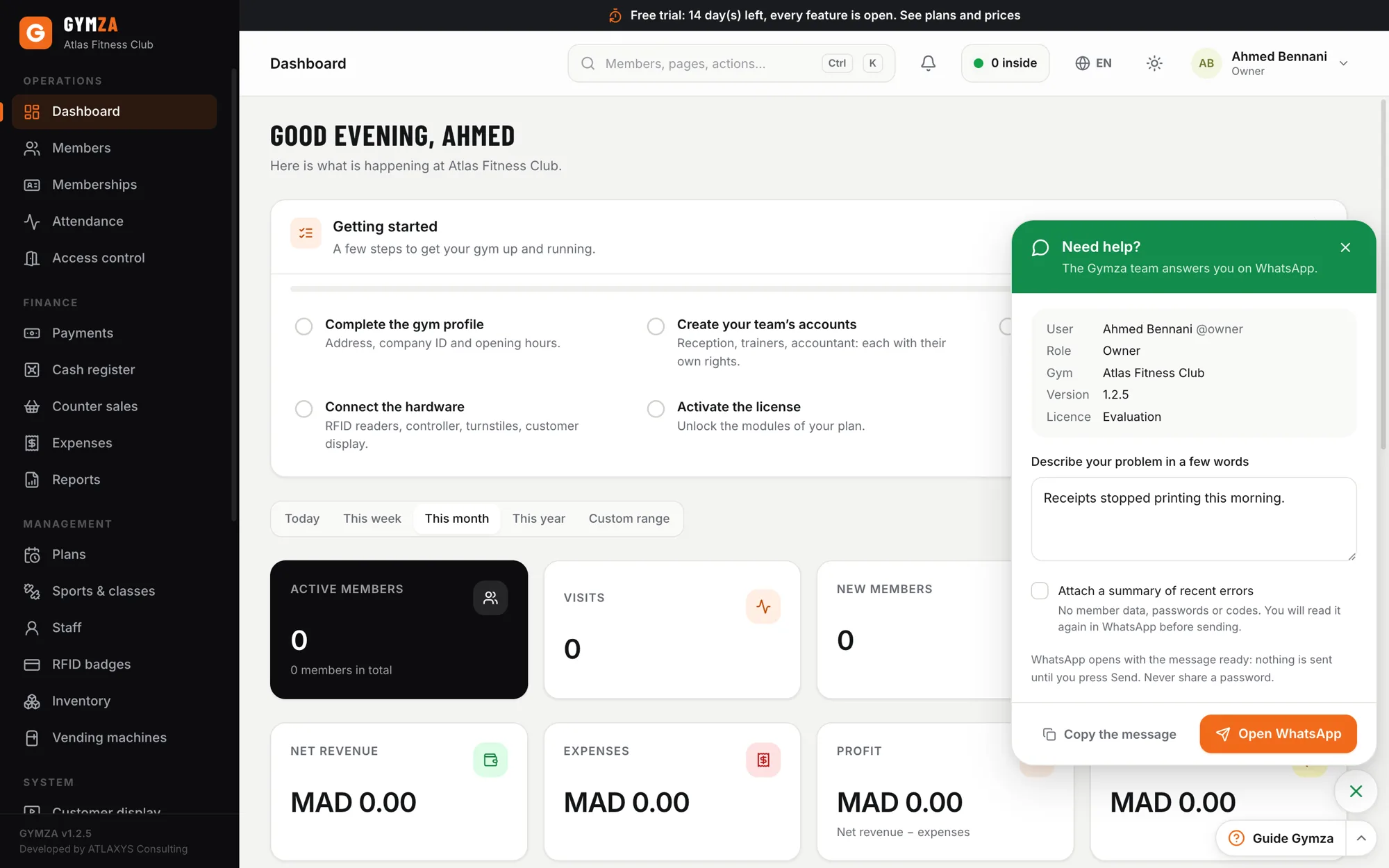
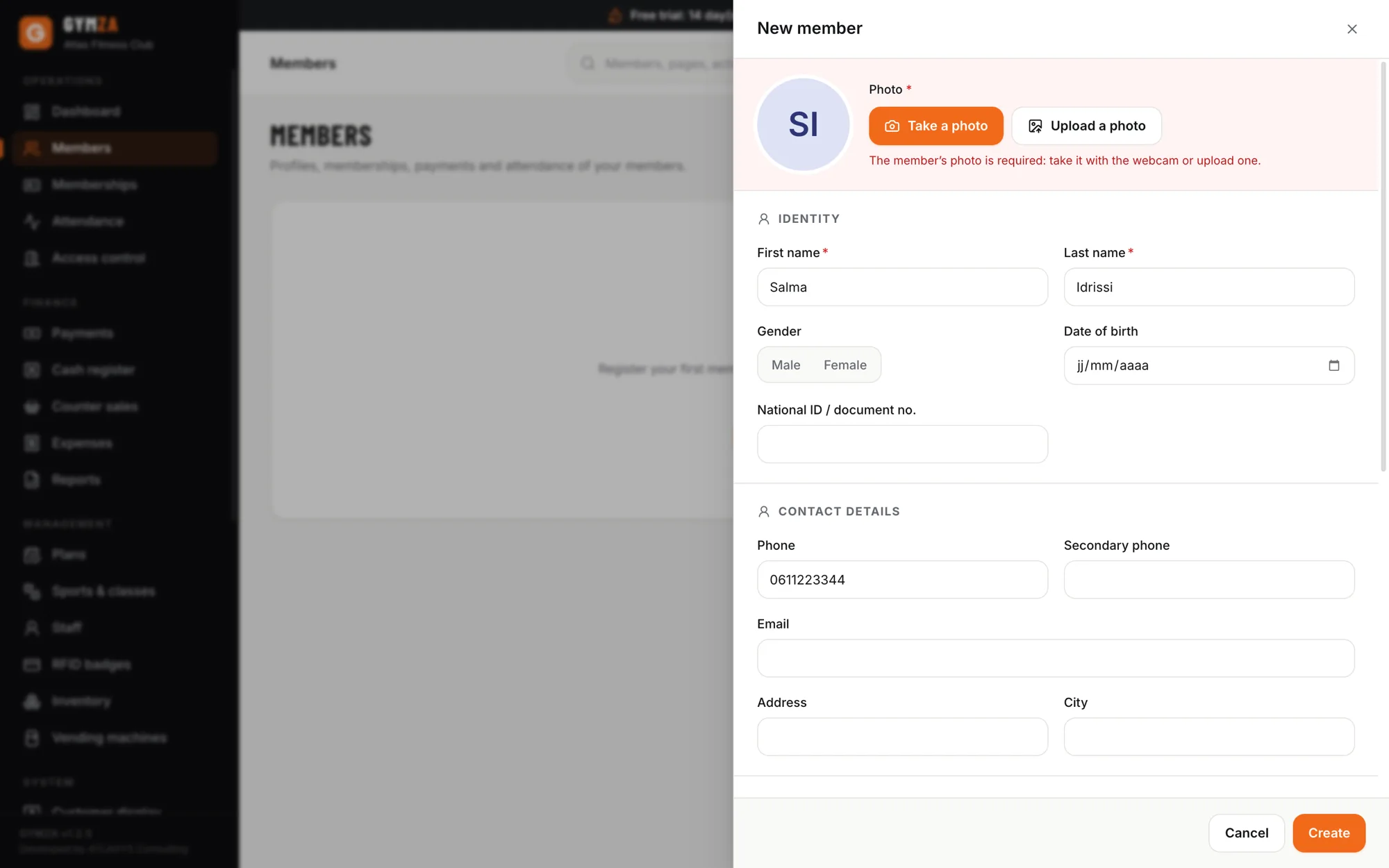
Fix: a required photo is clearly flagged
When your gym requires a photo for every member, a missing one is now clearly flagged next to the photo, whether you take it with the webcam or upload a file.
Gymza’s logo and colour are fixed
The Gymza logo and its orange can no longer be changed inside the application. Your gym’s name, slogan and logo stay on receipts, member cards and the customer display; the gym logo can no longer be changed from the app. Since Gymza 1.4.22 it can again: Settings › Branding lets you add the gym’s logo, pick your own colours and show your logo and name instead of Gymza.


Captures of Gymza on a test PC, with no real gym’s data.
How to get this version
- 1
New installation
Download Gymza: the installer is already version 1.4.27.
- 2
From Gymza 1.2.3 or later
Open Updates in the menu, then “Check for updates” and “Download and install”. Gymza waits for a quiet moment, takes a backup and installs by itself, without the installer’s pages.
- 3
From Gymza 1.1
The Updates page already exists: the update starts the same way, but the installer shows its pages one last time (language, licence, folder): follow them to the end.
- 4
From Gymza 1.0
Version 1.0 has no online check: the first time, install the package we send you (on a USB stick or by e-mail) from Settings → System → Update, then follow the installer’s pages. Later updates are done from inside Gymza.
Go further
- Fingerprint accessFingerprints enrolled at reception and recognised at the turnstile (experimental).
- ZKTeco ZK8500R fingerprint readerFingerprint enrolment at reception, sent to the ZKTeco controller; experimental.
- Updating GymzaOnline or by USB stick, without losing your data.
- Updates and securityUpdates without interruption, accounts, the unlock pattern and WhatsApp help.
- Troubleshooting RFID access controlUnknown badge, refusals, silent turnstile: causes and fixes.
- The member walletStore credit members spend at the counter, without inflating your revenue.
- Find a sale and its receiptSales history: period, search, receipt and void.
A question about this version?
Write to us on WhatsApp or at [email protected]: we help you update, in French, Arabic or English.